Common Capcut Pro APK Problems and How to Fix Them
November 3, 2026 (6 days ago)
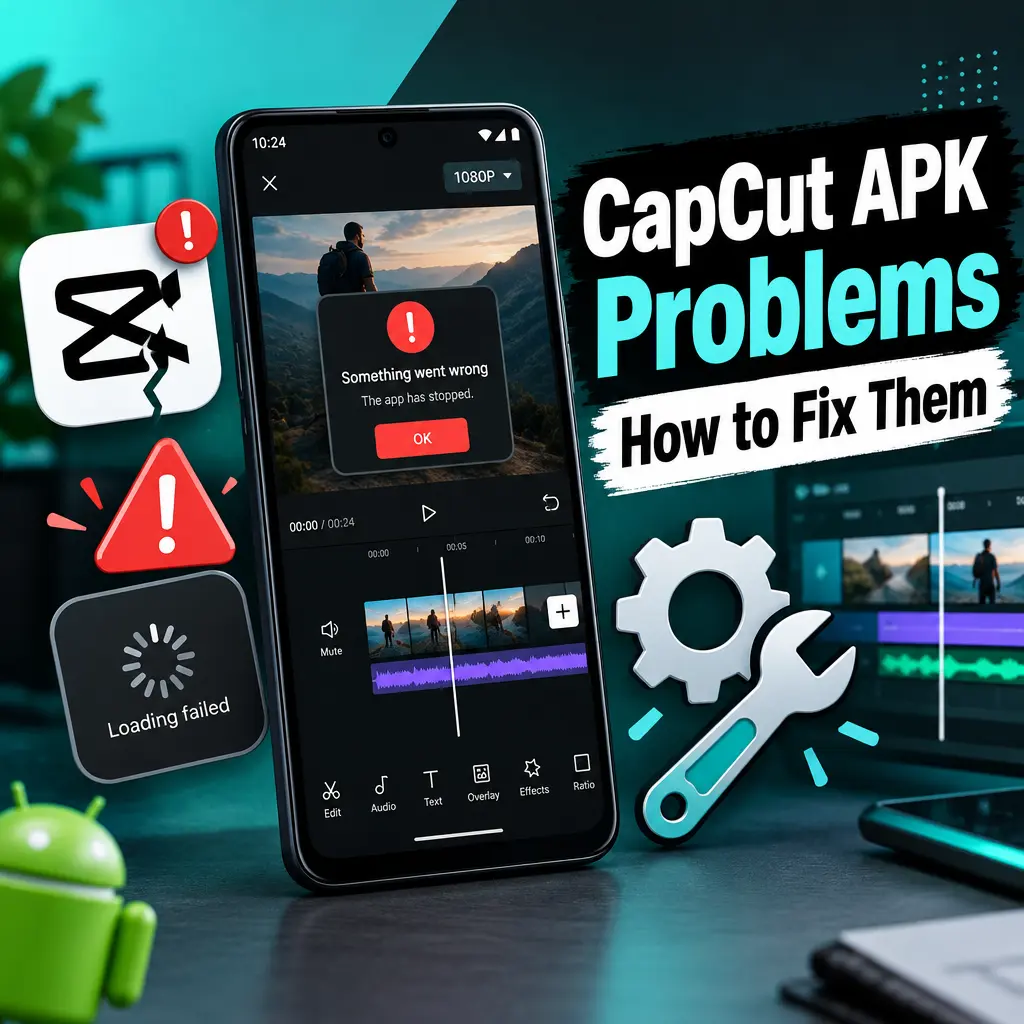
Running into problems with a CapCut Pro APK can be frustrating, especially when you only want to edit a video, add captions, apply effects, or export your project. Most issues come from app compatibility, storage limits, corrupted APK files, missing permissions, or confusion between unofficial APK packages and the official CapCut app. This guide explains common problems and practical fixes in simple steps. It is important to remember that APK files are for Android only, and any third-party APK should be handled carefully because its contents, safety, version, and feature access cannot be confirmed unless you verify them yourself through trusted tools and sources.
1. APK Not Installing
One of the most common problems is that the APK does not install at all. Android may show messages like “App not installed,” “There was a problem parsing the package,” or “Installation failed.” This usually happens because the APK is damaged, incompatible with your device, blocked by system settings, or conflicts with an existing CapCut installation.
- Check Android compatibility: Do not assume every APK works on every Android phone or tablet. If the package was built for a different device architecture or Android version, installation may fail.
- Remove conflicting versions: If you already have CapCut installed from Google Play or another source, uninstall it before trying to install another APK. Back up your projects first if possible.
- Enable install permission: Go to your Android settings and allow installation from the browser or file manager you are using. Turn this off again after installing.
- Download again from a source you trust: A corrupted or incomplete file can cause a parse error. Since third-party APKs are not automatically verified, be cautious.
2. App Crashes After Opening
If the app opens and immediately closes, the cause may be device incompatibility, low memory, broken app data, or an unstable APK package. Video editing apps can be demanding because they process clips, audio, effects, transitions, captions, and previews in real time.
- Restart the device: A simple restart can clear background processes and free up memory.
- Clear cache and app data: Go to Settings, Apps, CapCut, Storage, then clear cache. If that does not help, clear data, but remember this may remove local settings and unsaved work.
- Free up RAM: Close games, screen recorders, social apps, and other heavy apps before editing.
- Try the official app: If the APK keeps crashing, install CapCut from an official store where available. Official versions are generally easier to update and troubleshoot.
3. Features Missing or Not Working
Some users expect every advanced feature to be available in a CapCut Pro APK, but that is not something anyone should assume. CapCut features such as trimming, splitting, multitrack editing, automatic captions, effects, transitions, templates, filters, and background removal may depend on platform, device, region, account status, or plan. CapCut Pro features require the appropriate membership in the official app.
- Check your account status: If a feature requires a subscription, using an APK does not guarantee access.
- Update through official channels: Feature availability changes over time, and unofficial APKs may not match the official release.
- Confirm platform support: A tool available on Android may not behave the same way on web, iOS, or desktop.
- Use alternative tools inside the app: If one effect or template does not load, try manual editing with overlays, keyframes, captions, and transitions.
4. Export Fails or Gets Stuck
Export problems are especially annoying after spending time editing. The export may freeze, fail near the end, or create a file that will not play properly. This can happen because of low storage, unsupported media, too many layers, large file sizes, or unstable app behavior.
- Free storage space: Keep enough extra space for temporary export files. Video editors often need more storage than the final video size.
- Lower export settings: If export fails, try a lower resolution or frame rate. Do not assume every device can handle high quality export settings smoothly.
- Split long projects: Export large projects in shorter parts, then combine them later.
- Remove heavy effects: Effects, filters, background removal, motion blur, and multiple overlays can increase processing load.
- Check source clips: A damaged video file can break the export. Replace the clip or convert it to a common format before editing.
5. Laggy Timeline and Slow Preview
CapCut editing can feel slow if your project has many layers, high resolution footage, animated text, transitions, filters, and audio tracks. Lag does not always mean the app is broken. Sometimes the device is simply struggling to preview everything in real time.
- Reduce preview quality: If the app offers preview quality controls, use a lower preview setting while editing.
- Edit in sections: Work on smaller parts of the video instead of keeping everything in one long timeline.
- Use fewer layers: Remove unused overlays, stickers, audio clips, or duplicated media.
- Keep the phone cool: Heat can reduce performance. Let the device rest if it becomes hot.
- Store media locally: Editing clips from cloud folders or removable storage can slow performance.
6. Audio Out of Sync
Audio sync issues can happen after importing clips, adding music, recording voiceovers, or exporting. This is often related to source video problems, variable frame rate footage, Bluetooth delay, or overloaded timelines.
- Use wired headphones while editing: Bluetooth audio can have delay, which may make sync look wrong during preview.
- Convert the video first: If a clip was recorded by a screen recorder or messaging app, convert it to a standard format before importing.
- Detach and adjust audio: Manually shift the audio track until speech and movement match.
- Test a short export: Sometimes preview is delayed, but the exported file plays correctly. Export a short section to check.
7. Templates, Effects, or Captions Not Loading
Some CapCut tools need an internet connection or server access. Templates, online effects, automatic captions, music libraries, and cloud-based tools may fail if the network is unstable, the feature is unavailable in your region, or the app package cannot connect properly.
- Check your internet connection: Switch between Wi-Fi and mobile data to test.
- Disable VPN temporarily: VPNs can cause loading errors or region conflicts.
- Sign in again: Log out and back in if account-based tools are not loading.
- Try later: Server-side tools may fail temporarily, even in the official app.
8. Watermark or Premium Prompts Still Appear
If you see watermark messages, export limits, or premium prompts, that does not necessarily mean something is broken. In the official CapCut app, some Pro features require the right membership. A third-party APK should not be trusted to provide premium access, subscription bypass, or watermark-free exports. If you need Pro tools for regular work, the reliable route is to use the official app and the proper plan.
- Review the feature label: If a tool is marked Pro, it may require a membership.
- Avoid subscription bypass claims: These claims can be misleading and may expose your device or account to risk.
- Use free alternatives inside CapCut: Many basic editing tools, such as trimming, splitting, text, audio adjustment, and simple transitions, may be enough for common edits.
9. Problems on PC, iPhone, or Mac
APK packages are Android-only. You cannot install an APK directly on iPhone, iPad, macOS, or Windows as a normal native app. For computers, CapCut has distinct desktop and web options depending on availability in your region. Some users run Android APKs through an Android emulator on Windows or macOS, but emulator performance and compatibility can vary.
- For Windows or macOS: Use the official desktop app or web version when available.
- For iPhone or iPad: Use the iOS version from the App Store where available.
- For emulator use: Treat it as optional Android compatibility, not the same as a native desktop app.
Final Troubleshooting Checklist
- Restart your device before deeper troubleshooting.
- Clear cache if the app crashes or behaves strangely.
- Free storage before importing or exporting large videos.
- Lower export settings if rendering fails.
- Use official CapCut sources when you need reliable updates and account-based features.
- Do not assume any third-party APK is safe, current, scanned, certified, or unlocked.
Most CapCut Pro APK problems come down to compatibility, permissions, storage, unstable files, or unrealistic expectations about premium access. For basic editing, careful troubleshooting can help you continue working with trimming, splitting, captions, effects, transitions, overlays, and other creative tools. For stable access to Pro features, account syncing, updates, and platform-specific support, the official CapCut app and the correct membership are the safer and more dependable choice.
Recommended For You