Complete Beginner’s Guide to Capcut Pro APK
October 11, 2026 (4 weeks ago)
CapCut is a popular video editing app used for short videos, social media clips, reels, tutorials, and creative edits. Many beginners search for “CapCut Pro APK” because they want advanced editing tools, effects, transitions, smooth exports, and more control over their videos. Before you start, it is important to understand one thing clearly: an APK file is only for Android devices, and any APK found outside official stores should be treated carefully. This guide is an independent beginner tutorial and is not connected with CapCut, ByteDance, or any official publisher.
What Is CapCut Pro APK?
“CapCut Pro APK” is a term people often use when looking for an Android installation package related to CapCut’s premium editing experience. However, you should not assume that any APK file found online includes official Pro access, unlocked subscriptions, watermark-free exports, or safe premium features. CapCut Pro features require the correct membership inside the official CapCut app.
As a beginner, it is better to think of this topic in two parts. First, CapCut is a video editor with many useful tools. Second, an APK is simply an Android app package that can be installed manually on compatible Android devices. Manual installation can carry risks if the file source is unknown, so always be cautious.
Important Things Beginners Should Know
- This guide is informational and independent. It is not an official CapCut guide.
- APK files are for Android only. You cannot install an APK directly on iPhone, iPad, macOS, or Windows.
- CapCut also has official versions for mobile, desktop, and web, but they are separate from Android APK files.
- Premium CapCut features require the correct plan or membership in the official app.
- Feature availability can depend on your device, region, app version, platform, and plan.
- Do not trust claims that promise free Pro access, subscription bypass, or guaranteed watermark-free exports.
How to Get Started with CapCut as a Beginner
If you are new to video editing, CapCut is a friendly place to begin because its layout is simple and its tools are easy to understand. Whether you use the official Android app, desktop version, web version, or another supported platform, the basic editing process is similar.
- Open CapCut: Start a new project from the home screen.
- Add media: Import videos, photos, or audio clips from your device.
- Arrange your clips: Place your clips in the order you want on the timeline.
- Trim and split: Cut unwanted parts and divide clips into smaller sections.
- Add text or captions: Use text tools for titles, labels, subtitles, or social media captions.
- Apply effects: Try filters, transitions, motion effects, and overlays where available.
- Preview your edit: Watch the full video before exporting.
- Export: Save the finished video using the export options available on your device and plan.
Understanding the Editing Timeline
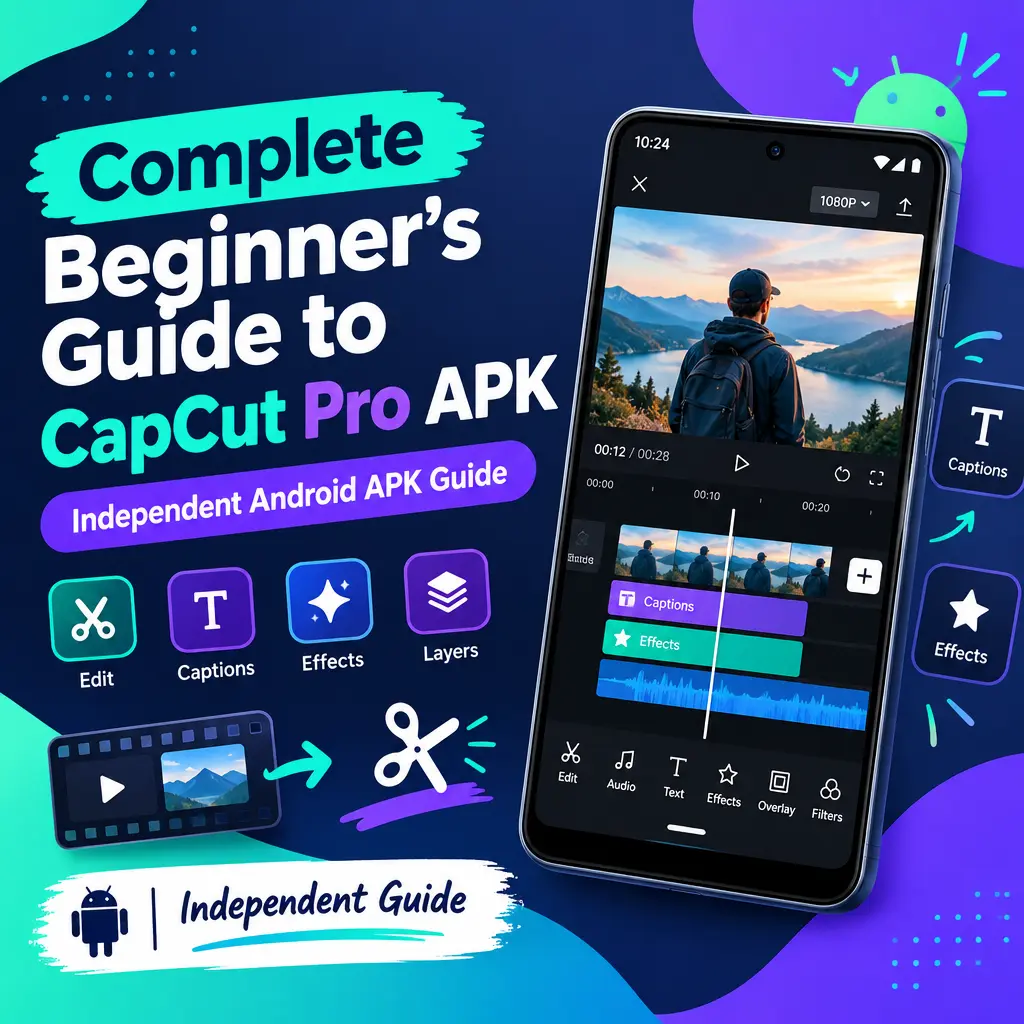
The timeline is where most of your editing happens. It shows your video clips, audio tracks, text, stickers, effects, and overlays in layers. If you are a beginner, do not try to use every tool at once. Start with basic cutting, then slowly add text, music, and transitions.
- Main video track: This is where your main clips appear.
- Audio track: Music, voiceovers, and sound effects can appear below the video.
- Text layer: Captions, titles, and labels sit above the video.
- Overlay layer: Extra images or videos can be added on top of your main clip.
- Effects layer: Some visual effects appear as separate layers depending on the tool.
Basic Tools Every Beginner Should Learn
You do not need advanced skills to create a clean video. Focus first on the tools that improve structure, clarity, and flow. Once you understand these basics, your edits will look much better.
- Trim: Shorten the start or end of a clip. This is useful for removing pauses or mistakes.
- Split: Cut one clip into separate parts so you can delete, move, or edit each section.
- Speed: Slow down or speed up a clip for creative timing. Availability can vary.
- Text: Add titles, descriptions, or simple subtitles to make your video easier to follow.
- Audio: Add music, voiceover, or sound effects to improve the mood.
- Transitions: Place transitions between clips to make changes feel smoother.
- Filters: Adjust the look and style of your video with color presets.
- Background removal: Some versions or plans may include tools that help separate subjects from backgrounds.
How to Make a Simple Video Step by Step
Here is a beginner-friendly workflow you can follow for your first project. This works well for social media clips, personal videos, product showcases, and short tutorials.
- Choose your goal: Decide if your video is for entertainment, education, promotion, or storytelling.
- Select your best clips: Pick only the useful footage. Short and clear clips are easier to edit.
- Place clips in order: Start with an attention-grabbing shot, then build the story.
- Remove mistakes: Trim silence, shaky moments, and repeated parts.
- Add captions: Captions help viewers understand your video even without sound.
- Use simple transitions: Avoid using too many effects. Clean editing often looks more professional.
- Add background music: Keep the volume low enough so voices remain clear.
- Check the final video: Watch from beginning to end before exporting.
Tips for Better Editing Results
- Keep your first videos short. A 15 to 60 second project is easier to manage.
- Use clear lighting when recording. Good footage is easier to edit.
- Do not overload your video with effects, stickers, and transitions.
- Match your music with the mood of the video.
- Use captions for important speech or instructions.
- Keep text large enough to read on small phone screens.
- Save your project progress often if the app or platform supports it.
- Preview your export quality before sharing widely.
About APK Installation and Device Compatibility
An APK package is designed for Android. If you are using an Android phone or tablet, APK installation may require allowing installation from outside the app store. This setting can expose your device to unknown files, so beginners should be careful and avoid files from sources they do not trust.
If you are on Windows or macOS, do not install an APK directly. You can use the official CapCut desktop app if available in your region, or you may use an Android emulator for Android app compatibility. Emulator performance and app behavior can vary depending on your computer and setup.
If you are on iPhone or iPad, use the iOS version from the official app store. APK files are not made for iOS.
Common Beginner Mistakes to Avoid
- Downloading unknown APK files without understanding the risks.
- Believing every site that promises free Pro features or subscription bypass.
- Adding too many transitions, filters, and effects in one video.
- Exporting before checking spelling, timing, and audio levels.
- Using copyrighted music without permission for public content.
- Ignoring platform rules when posting to TikTok, Instagram, YouTube, or other apps.
Final Thoughts for Beginners
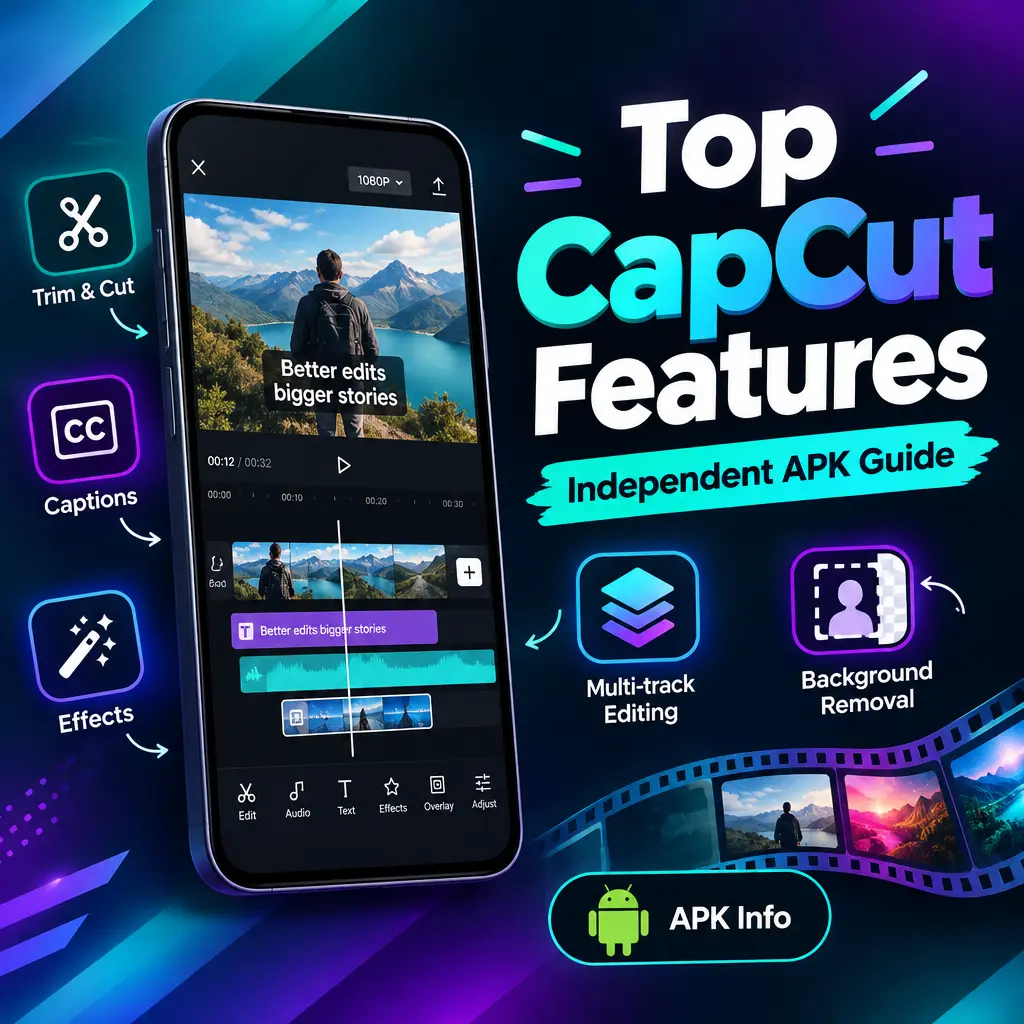
CapCut can be a powerful editing tool for beginners because it supports useful features such as trimming, splitting, multitrack editing, captions, effects, transitions, audio editing, overlays, and background removal on supported platforms and plans. The best way to learn is to start with a simple project, practice the basic tools, and improve one step at a time.
When it comes to “CapCut Pro APK,” be careful with claims about unlocked premium features, watermark-free exports, or free subscriptions. Official Pro features require the appropriate membership in the official CapCut app. Use safe habits, understand your device type, and focus on learning real editing skills. Good videos come from clear ideas, clean cuts, readable text, balanced audio, and creative storytelling.
Recommended For You